
This checklist is for people setting up a home office for crypto and Bitcoin work, whether they spend their day monitoring information, writing, or switching between tasks. The picks cover comfort, workspace, and connectivity, with practical guidance for matching each item to your setup.

Get hardware and tech essentials delivered free with Prime
- Fast, free delivery on millions of items
- Prime Video, Amazon Music and more included
- Member-only deals all year
The sections follow the listed picks, with a separate keyboard section offering advice because no specific product was provided. Each entry explains why the slot matters, what to check before buying, and who the pick may suit. Check your current equipment before deciding which pieces you need.
Use the checklist to compare each product’s stated features with your room, desk, and devices. Confirm dimensions, supported connections, and adjustment ranges in the product details, and make sure any item fits your existing setup. Compatibility comes first; then prioritize the changes that will make your daily workspace more comfortable.
Ergonomic Office Chair
A chair is a central part of a home office because it supports the posture and comfort you rely on throughout a work session. The ELABEST X100 Ergonomic Mesh Office Chair with Footrest names two features worth examining: a mesh design and a footrest. Check the product details for the adjustment options and dimensions, then compare them with your body and available floor space. A feature is useful only if it fits the way you sit and work.
A common mistake is choosing by the feature list alone. Look for clear information about seat height, seat depth, back support, armrest adjustment, and how the footrest deploys and stores. Confirm the chair’s stated weight capacity and assembly requirements as well. Fit and adjustability matter more than assuming that an ergonomic label guarantees a comfortable match. If possible, review the return and warranty terms before ordering, since comfort is personal and difficult to judge from a product title.
Measure the area around your desk, including room to recline or extend the footrest. Check that the chair can reach a height that works with your desk and that its arms clear the desk edge. Verify the measurements against your workspace before committing.
What to look for:
- Seat height and depth adjustment details
- Back support and recline adjustment information
- Footrest dimensions and storage position
- Stated weight capacity and assembly requirements
- Chair dimensions compared with desk and room clearance
ELABEST X100 Ergonomic Mesh Office Chair with Footrest

The ELABEST X100 is an adjustable mesh office chair with 3D lumbar support, a reclining backrest, and an extendable footrest. Its flip-up armrests, adjustable headrest, and breathable mesh are designed for long work or gaming sessions, and the chair supports up to 300 pounds.
Pros:
- Adjustable lumbar support, headrest, and armrests
- Extendable footrest and reclining backrest
- Breathable mesh construction
- Supports up to 300 pounds
Cons:
- Assembly is required
- Many adjustment features may take time to configure
Best for: People who want a mesh chair with a footrest for their home office
Not ideal for: Anyone whose desk clearance or body fit does not match the listed dimensions
Bottom line: Compare the chair’s adjustments and measurements with your desk and preferred sitting position before choosing it.
Adjustable Standing Desk
An adjustable desk setup can help you vary how you work during the day, but the key is whether the product fits your existing desk and equipment. The VERSADESK PowerPro 40-Inch Electric Standing Desk Converter is a converter, so check how it sits on your current surface and what workspace remains beneath or beside it. Its 40-inch measurement is part of the product name; confirm the actual usable work area and overall footprint in the specifications.
Buyers often overlook the weight of the equipment they plan to place on a converter or assume that every desk surface is suitable. Check the stated load limit, lift range, and operating requirements, then account for monitors, keyboard, and other items together. Measure the full setup, including cables and monitor stands, to make sure raising the platform will not pull or snag connections. The product title indicates electric adjustment, but review the listing for controls, power needs, and any assembly details before purchase.
Consider the height of your current desk and your own standing position. A converter should place the work surface where you can use your keyboard and screen comfortably; confirm that the adjustment range accommodates both sitting and standing at your desk. Check stability and clearance in the product details, especially if you use a large display or multiple devices.
What to look for:
- Usable platform dimensions and full footprint
- Stated load limit for all equipment placed on top
- Adjustment range relative to your desk and standing height
- Power and control requirements
- Cable slack and clearance for monitors and peripherals
VERSADESK PowerPro 40-Inch Electric Standing Desk Converter
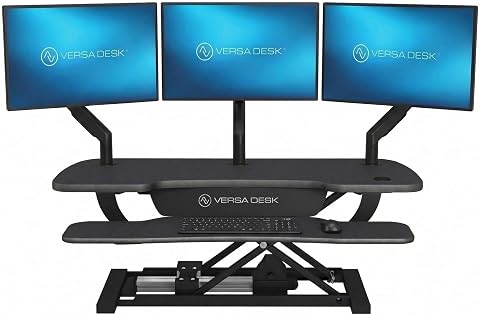
This motorized standing desk converter has a split-level design for monitors, a laptop, and a keyboard, with push-button height adjustment and a built-in USB charging port. Its carbon steel frame supports up to 80 lbs, and it includes cable-routing grommets, a child safety lock, and a lifetime warranty.
Pros:
- Electric lift enables convenient sit-to-stand adjustments
- Supports up to three monitors plus a laptop
- Built-in USB port and cable-routing grommets
- Ships fully assembled and includes a lifetime warranty
Cons:
- Monitor and monitor arm are not included
- Monitor arm is sold separately
Best for: People who want an electric converter on a compatible desk
Not ideal for: Setups that exceed the platform dimensions, load limit, or adjustment range
Bottom line: Measure your desk and equipment, then confirm the converter’s footprint, capacity, and height range.
Ultrawide Monitor
A monitor arm can free up desk surface and help position a screen, but fit and support are essential. The listed Ultrawide Monitor Arm – Fits 17‑49 in, Heavy‑Duty Flat/Curved Monitor specifies a screen-size range and compatibility with flat and curved displays. Treat those details as a starting point: verify the arm’s supported weight and mounting pattern against your monitor, since screen size alone does not establish compatibility.
A frequent buying mistake is assuming that an arm advertised for a large screen can support any monitor in that range. Check the monitor’s weight without its original stand, the VESA pattern, and the arm’s stated minimum and maximum loads. Match the mount and weight before ordering. Also confirm the desk’s thickness and construction are suitable for the attachment method, and leave enough room behind the desk for the arm to move without hitting a wall or shelf.
Think through where the screen should sit relative to your chair and keyboard. Ultrawide displays can need more horizontal clearance, and a curved screen may affect how far the arm needs to extend. Check the product’s range of motion and the dimensions of its base or clamp. Plan cable routing and ensure the arm can hold the display in your preferred position without obstructing other equipment.
What to look for:
- Monitor weight compared with the arm’s supported load
- VESA mounting pattern compatibility
- Desk thickness and clamp or mounting requirements
- Clearance for the arm’s range of motion
- Cable routing and space for an ultrawide display
Ultrawide Monitor Arm – Fits 17‑49 in, Heavy‑Duty Flat/Curved Monitor
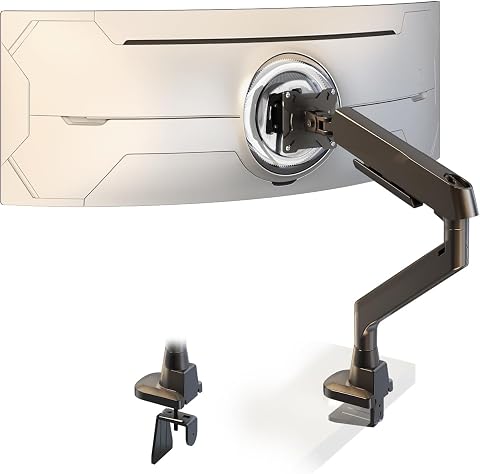
The STANDOPIA ultrawide monitor arm supports flat and curved screens from 17 to 49 inches and up to 35.2 lb with a high‑quality gas spring that eliminates sag. It offers full motion—including tilt, swivel, and 360° rotation—and integrated cable management for a clean, ergonomic workspace.
Pros:
- Supports a wide range of monitor sizes (17‑49 in) and weights up to 35.2 lb.
- Full motion adjustment with smooth tilt, swivel, and 360° rotation.
- Integrated cable management keeps the workspace tidy.
- Heavy‑duty clamp fits desks 10–50 mm thick for secure installation.
Cons:
- May be heavy to adjust frequently due to robust construction.
Best for: People with a compatible 17- to 49-inch flat or curved monitor
Not ideal for: Displays whose weight, mount pattern, or desk attachment falls outside the listed support
Bottom line: Confirm the monitor’s weight, VESA pattern, and desk fit rather than relying on screen size alone.
Mechanical Keyboard
A keyboard is one of the most frequently used parts of a home office, so its layout and feel can affect everyday comfort. No specific product is listed here; use this slot to identify what suits your work habits. Start with the layout you need, including whether you rely on a number pad, function keys, or a compact footprint. Choose the layout first, then compare switch feel and connection options.
Common mistakes include buying a keyboard that is too large for the available desk space or choosing a switch style based on someone else’s preference. Check the keyboard’s dimensions, key layout, and whether it connects by cable or wirelessly. If you share a room, consider the sound of the switches and whether the keyboard offers a quieter option. Comfort is personal, so pay attention to key spacing, wrist position, and any available return policy.
Check compatibility with your computer’s operating system and connection ports, and confirm whether any included software or special keys meet your needs. If you switch between devices, look for clearly stated device-pairing support. Measure the space between your monitor and the front edge of the desk so the keyboard and mouse can sit where your arms remain relaxed. Match the keyboard to your workflow and the space you have.
What to look for:
- Full-size, tenkeyless, or compact layout to match your tasks
- Switch feel and sound suited to your workspace
- Wired or wireless connection compatible with your devices
- Operating system and key-function support
- Dimensions that leave room for comfortable mouse placement
USB-C Docking Station
A dock can simplify a home office by connecting several peripherals through a central device, but the computer and displays must support its features. The Anker Prime DL7400 14-in-1 DisplayLink Docking Station names a 14-in-1 design and DisplayLink. Check the product documentation and your computer’s specifications for supported operating systems, required drivers, and the exact ports you need. The number in the name does not tell you whether the port mix suits your setup.
A common mistake is assuming that any USB-C port supports every dock feature, including charging and multiple displays. Confirm your computer’s USB-C capabilities, the dock’s host connection requirements, and the supported display resolutions and refresh rates. Check every connection you plan to use: monitors, storage, network, audio, and charging. If the dock uses DisplayLink software, review setup requirements and compatibility with your operating system before relying on it for daily work.
Count the devices you plan to connect and compare them with the dock’s port list. Make sure the power adapter and cable arrangement work at your desk, and verify whether the dock can supply the charging power your laptop needs. Plan for your actual devices, since a dock is only convenient when it supports the specific computer, displays, and peripherals in the workspace.
What to look for:
- Exact port types and number for your peripherals
- Computer compatibility and host connection requirements
- DisplayLink driver and operating system support
- Display resolution and refresh rate support for your monitors
- Laptop charging capability and required power adapter
Anker Prime DL7400 14-in-1 DisplayLink Docking Station

This docking station connects up to three 4K displays and offers USB-C, USB-A, HDMI, DisplayPort, Ethernet, audio, and SD/TF card ports. It supports laptop charging up to 140W, with a built-in display and fan for monitoring and cooling.
Pros:
- Supports up to three 4K external displays
- Provides up to 140W laptop charging
- Broad selection of ports, including 2.5Gbps Ethernet
- Built-in smart display and fan cooling
Cons:
- Requires a DisplayLink driver for triple-display use
- DRM-protected streaming may show a black screen
- Front USB-C ports do not support video output
Best for: People who need a dock with a broad port selection and DisplayLink
Not ideal for: Computers or displays that lack support for the dock’s requirements
Bottom line: Match the dock’s ports, DisplayLink needs, display support, and charging capability to your exact computer.
Surge Protector
Power protection is a practical consideration when a workspace includes a computer and connected equipment. The SurgeX SA-20 Standalone Surge Eliminator – 120 Volt, 20 Amp, Advanced names its voltage and amperage, so compare those ratings with your electrical setup and the devices you intend to connect. The product title alone does not establish which outlets or protection features it provides; consult the manufacturer’s specifications for those details.
A common mistake is treating every surge product as a basic power strip or assuming that a higher amperage rating means it fits every room. Confirm the required receptacle, circuit, installation method, and local electrical requirements. Check the connection type and whether the product is intended for your use before buying. Review the documentation for its protection capabilities and limitations, and follow the manufacturer’s installation instructions.
List the equipment you plan to plug in and check each device’s power requirements against the product’s ratings. Consider cable reach and where the unit will sit, particularly if it needs a dedicated location. If you are unsure whether your outlet or circuit is suitable, consult a qualified electrician. Verify electrical compatibility before connecting valuable office equipment.
What to look for:
- Voltage and amperage compatibility with your electrical setup
- Required receptacle, circuit, and installation method
- Outlet configuration and connection details in the specifications
- Manufacturer-stated protection capabilities and limitations
- Cable reach and suitable placement for connected equipment
SurgeX SA-20 Standalone Surge Eliminator – 120 Volt, 20 Amp, Advanced Series Mod

The SurgeX SA-20 is a surge eliminator designed to protect sensitive electronics from surges, spikes, and noise. It features advanced non-sacrificial technology that eliminates surge energy up to 6,000 volts, enhancing audio, video, and mission-critical device performance.
Pros:
- Non-sacrificial surge protection technology ensures durability
- Effective noise filtering improves audio and video quality
- Suitable for sensitive electronics like audio, video, and laboratory equipment
- High surge capacity up to 6,000 volts
Cons:
- Limited number of outlets (only 2)
- Designed for specific electrical standards (120V, 20A)
- No integrated power switch or additional features
Best for: People whose electrical setup matches the stated 120-volt, 20-amp requirements
Not ideal for: Setups without the required outlet, circuit, or installation conditions
Bottom line: Confirm the receptacle, circuit, and device requirements against the manufacturer’s documentation first.
Build the office in a practical order: first address the chair and desk position, then decide whether you need a monitor arm or keyboard that better fits your work. Add the dock after confirming your computer and display connections, and check electrical requirements before choosing power protection. Prioritize fit and compatibility so each purchase works with the equipment you already have.
You do not need to replace everything at once. Measure your space, note your daily frustrations, and work through the checklist one item at a time. A well-matched setup can make the home office easier to use, and a little checking before buying helps each addition serve its purpose.